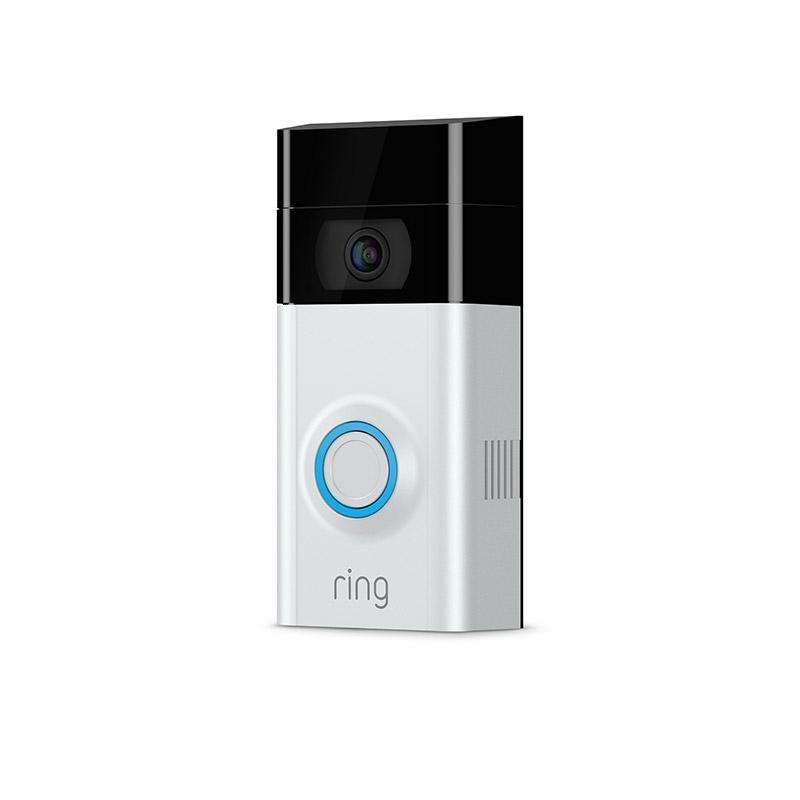
Doorbell that is.
*UPDATE* The method described below no longer works. Ring has changed the authentication process as well as the functionality of a number of endpoints. The new method can be found here: https://overkillscripting.home.blog/2020/07/19/you-can-ring-my-bell-with-powershell-updated/
Recently my office decided to get rid of our old 2.4 GHz wireless doorbell. It operated by sending a signal from our receiving door to a doorbell receiver in our office about 30 feet away. It was unreliable, and the batteries would constantly die in the middle of the work day causing us to miss important deliveries.
Being a technology focused workplace, we went looking for something that was more “on our level” which lead us to the Ring doorbell. Once it was all set up I knew how I’d be spending the next 30 minutes of my life: trying to ring the doorbell using only powershell.
Unfortunately, I couldn’t find anyone who had documented how to do this, and furthermore the API was completely undocumented. I couldn’t find a single write-up of someone interacting with the Ring API using Powershell.
The closest thing I found was a github python project.
Fortunately, this project had already exposed all of the API endpoints so all I had to do was get to work.
The first thing to do with any API is to figure out how to authenticate to it. Once you are able to authenticate, you can generate an OAUTH token. Then, using that token you can make standard GET and POST commands using the token that was generated. To create an access token all you will need are your username and password which you can replace in the code below.
# Necessary information for generating an access token
# Construct the body of the token request
    $body = @{
    client_id = "ring_official_android"
    grant_type = "password"
    scope = "client"
    username = "YourUsernmae"
    password = "YourPassword"
}

#set the header content
    $headers = @{

    'Content-Type' = 'application/x-www-form-urlencoded';
    'charset' = 'UTF-8';
    'User-Agent' = 'Dalvik/1.6.0 (Linux; Android 4.4.4; Build/KTU84Q)';
    'Accept-Encoding' = 'gzip, deflate'

    }

#Set the token request URI
$uri = 'https://oauth.ring.com/oauth/token'
Using this construction, we’re ready to generate an access token. In the first command we receive the raw token data. and in the second we convert that raw data into the correct format so we can use it later on.
# Get OAuth Token
$tokenRequest = Invoke-WebRequest -Method Post -Uri $uri -Body $body -UseBasicParsing -Headers $headers

#convert the token data into a useable format
$token = ($tokenRequest.Content | ConvertFrom-Json).access_token
With our authorization token in hand we’re ready to start querying our setup to get some information specific to our account. Notice we’re now passing the OAUTH token “$token” into the header information of our API call. First, lets start by gathering information about all of our doorbells and chimes.
#Get information about all Chimes and doorbell objects

$chimes = ((Invoke-WebRequest -Method get -Uri 'https://api.ring.com/clients_api/chimes/' -Headers @{Authorization = "Bearer $token"}).content | ConvertFrom-Json).chimes


$doorbells = ((Invoke-WebRequest -Method get -Uri 'https://api.ring.com/clients_api/doorbots/' -Headers @{Authorization = "Bearer $token"}).content | ConvertFrom-Json).doorbots

#quick access reference for the object IDs
$chimes.ID
$doorbells.ID
To interact with a specific chime or doorbell you need to reference the object via its “ID” attribute. At this point we have everything we need to accomplish our goal, so lets put it all together. The URI for ringing a chime is “https://api.ring.com/clients_api/chimes/{chimeID}/play_sound” and it requires a POST request method.
#  The command below will ring the doorbell replace {chimeID} with the ID
# of the chime you want to ring

$RingMyBell = Invoke-WebRequest -Method post -Uri 'https://api.ring.com/clients_api/chimes/{chimeID}/play_sound' -Headers @{Authorization = "Bearer $token"}
Success! We’ve now successfully fooled everyone in the office into thinking there’s someone at the door.
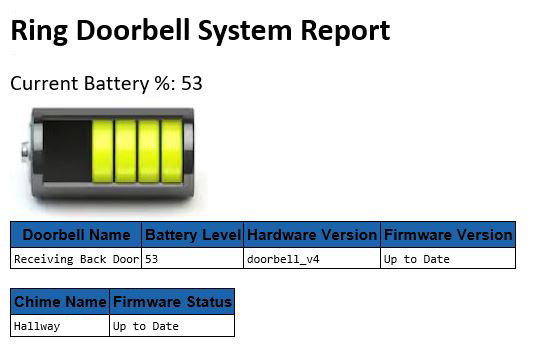
Taking this a step further, I used the endpoints (see the end of the post) I pulled from the python project to make a semi-regular email report that goes out to everyone in the office. We still haven’t had time to run a dedicated power line out to the doorbell so my report queries the battery status, and a few other things, so we always know when we will need to swap out the batteries. The embedded image even changes depending on the level of the battery for a nice at a glace update.
Well, that’s it for my first post. I’ll leave you with the rest of the Ring API endpoints so you can take them and have some fun with them.
<#
# API endpoints
OAUTH ENDPOINT = 'https://oauth.ring.com/oauth/token'
API VERSION = '9'
API URI = 'https://api.ring.com'
CHIMES ENDPOINT = '/clients_api/chimes/{0}'
DEVICES ENDPOINT = '/clients_api/ring_devices'
DINGS ENDPOINT = '/clients_api/dings/active'
DOORBELLS ENDPOINT = '/clients_api/doorbots/{0}'
PERSIST TOKEN_ENDPOINT = '/clients_api/device'

HEALTH DOORBELL ENDPOINT = DOORBELLS_ENDPOINT + '/health'
HEALTH CHIMES ENDPOINT = CHIMES_ENDPOINT + '/health'
LIGHTS ENDPOINT = DOORBELLS_ENDPOINT + '/floodlight_light_{1}'
LINKED CHIMES ENDPOINT = CHIMES_ENDPOINT + '/linked_doorbots'
LIVE STREAMING ENDPOINT = DOORBELLS_ENDPOINT + '/vod'
NEW SESSION ENDPOINT = '/clients_api/session'
RINGTONES ENDPOINT = '/ringtones'
SIREN ENDPOINT = DOORBELLS_ENDPOINT + '/siren_{1}'
SNAPSHOT ENDPOINT = "/clients_api/snapshots/image/{0}"
SNAPSHOT TIMESTAMP_ENDPOINT = "/clients_api/snapshots/timestamps"
TESTSOUND CHIME ENDPOINT = CHIMES_ENDPOINT + '/play_sound'
URL DOORBELL HISTORY = DOORBELLS_ENDPOINT + '/history'
URL RECORDING = '/clients_api/dings/{0}/recording'
#> Overkill Scripting
Very cool and impressive! Great blog and excellent information. I look forward to seeing your future posts!
LikeLike
ist this script still working ? i got not token as responce
LikeLike
I just noticed the comments that this stopped working today. I have a working solution that I will post for everyone interested at some point in the coming days. Basically Ring’s mandatory 2FA broke things. I’ll do a bit of testing first to make sure I’m giving good information in the post.
LikeLike
Shame this stopped working in Dec 2019
LikeLike
Hey Ben, sorry I didn’t notice your comment earlier. You’re right that this broke a while back when Ring started enforcing 2FA on all logins including API access. I have a solution for authenticating through powershell but I’d like to clean it up a bit before posting the new authentication method. Look out for that in the coming days.
LikeLike