Universally Misunderstood : Programmatically Installing Universal Print Printers

In today’s world of print nightmare vulnerabilities and security exploits around printing and driver installation, our organization was looking into various ways to mitigate our risk while still allowing our non-admin users to install printers on their computers. After looking at all the options out there, Microsoft’s Universal Print solution seemed like a perfect option. It uses a preinstalled universal printing driver that is native to the OS, and it gets updates through Windows updates. We found there is even support for job-holding and follow me printing through third party addons like the Papercut Universal Print connector, which is free with our existing Papercut subscription.

The big issue with Universal Print is the lack of documentation when it comes to doing things like programmatically installing printers. As an admin who likes having control over all things, I was a bit miffed that I couldn’t find a way to install a Universal Print printer via C#, Powershell or any of the other tools at my disposal. This means that I can neither “push” a printer to a user’s machine, nor build an application to allow them to easily do the job themselves. Microsoft’s only existing solution at the time of writing this article is a convoluted system of csv files, and an .intunewin packaged installer delivered through Intune that will perform a printer installation during a user log on event. There’s a certain inelegance to that method of installation, that I just can’t accept in my life.

Traditional Printing Solution

Currently, users in our organization use a printer management tool I wrote that allows them to select the location they’re at, then pick a printer from a list of printers at that site. A list box is then populated with the list of printers dedicated to that site by querying the print server for that location. They can then install the printer while choosing whether or not to make it their default printer. The app also handles uninstalling printers as well.
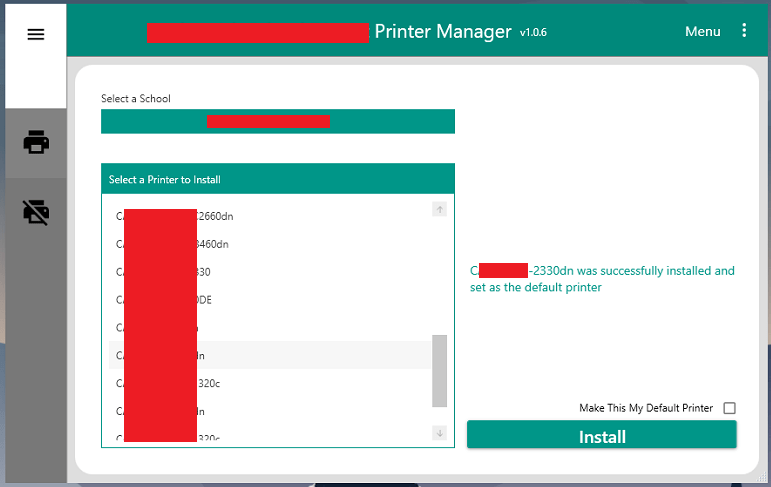
There’s got to be a better way!

I wanted our users to manage printers the same way after we migrated to Universal Print. Traditional printer installation, aka connecting to a shared network print queue, is a well documented .net procedure that was easy to implement. Unfortunately, the same could not be said for Universal Print printer installation. I decided to take the Hail Mary long shot and go hat-in-hand to Microsoft asking for their help. I fully expected them to come back to me with a simple and concise, “No, but thank you for your interest”. Luckily I connected with a very helpful support escalation engineer who did their best to squeeze any nugget of information out of the Universal Print dev team who were, as I expected, reluctant to divulge any useful information. My useful nugget came in the form of three simple word. Windows, devices, enumeration. Knowing that this was as much help as I would receive, I took it and said, “thank you very much”.

Narrowing the scope of my search was all I needed, so I set off and read everything I could about that particular namespace. As it turns out, Universal printers are not truly installed at all. They are paired using the functionality of the Windows.Devices.Enumeration namespace. This is very similar to the process of pairing a Bluetooth device, a WSD device, UPnP device or any other wireless device. After brushing up on all of the related Microsoft documentation I found that Microsoft has a sample pairing application (download this if you’d like to follow along with the code below) written in my preferred language, C#, that was already to set up to pair the most common types of devices. This really helped my understanding of the discovery, and the pairing process. This was also perfect because I now had a basic platform to perform my testing that wouldn’t require me to code it from scratch. I just had to figure out how to actually do the pairing.

On a scale of 1 to 10

I’ll skip over all the days of investigation work I did and get right to the code that worked, and what modifications you can make to Microsoft’s sample pairing application to test the functionality for yourself. I’ll be using the C# version of the sample pairing application if you’re following along. This code supports “scenario 8”, simple device pairing. First, in the DisplayHelper class, I had to create a new DeviceSelectorInfo object. This binds an aqs query string as well as a DeviceInformationKind object to the selectable dropdown box which determines the types of devices which will be searched for. The short explanation of the query is that “~<” is the “begins with” operator. The query runs a search for any AssociationEndpoint with an ID starting with “MCP#”.

 
//a new DeviceSelectorInfo object for Universal Printers
public static DeviceSelectorInfo UPprinter =>
            new DeviceSelectorInfo() { DisplayName = "Universal Print Printer", Selector = "System.Devices.Aep.AepId:~<\"MCP#\"", Kind = DeviceInformationKind.AssociationEndpoint};

Next, the application populates the list of selectable items rather than doing so through direct binding because it uses different DeviceSelectorInfo objects for different scenarios. Because of this, you’ll need to populate the dropdown selector with the newly created DeviceSelctorInfo object. Scroll down in the DisplayHelper class to the public static List named PairingSelectors and add “selectors.Add(UPprinter);”

 /// <summary>
        /// Selectors for use in the pairing scenarios
        /// </summary>
        public static List<DeviceSelectorInfo> PairingSelectors
        {
            get
            {
                // Add selectors that can be used in pairing scenarios
                List<DeviceSelectorInfo> selectors = new List<DeviceSelectorInfo>();
                selectors.Add(Bluetooth);
                selectors.Add(BluetoothLE);
                selectors.Add(WiFiDirect);
                selectors.Add(PointOfServicePrinter);
                AddVideoCastingIfSupported(selectors);
                selectors.Add(Wsd);
                selectors.Add(Upnp);
                selectors.Add(NetworkCamera);

                //New Universal Print Selector
                selectors.Add(UPprinter);
                

                return selectors;
            }
        }

The first time I ran the search and I found a bunch of Universal Print printers, I was ecstatic. By placing a few breakpoints in the Watcher_DeviceAdded method of the DeviceWatcherHelper class I could view the DeviceInformation objects that were returned from the query. They contained a device id, and pairing properties to show if the device was able to be paired and if it was paired already. I rushed out to update my printer manager application to support searching for and pairing with Universal Print printers.
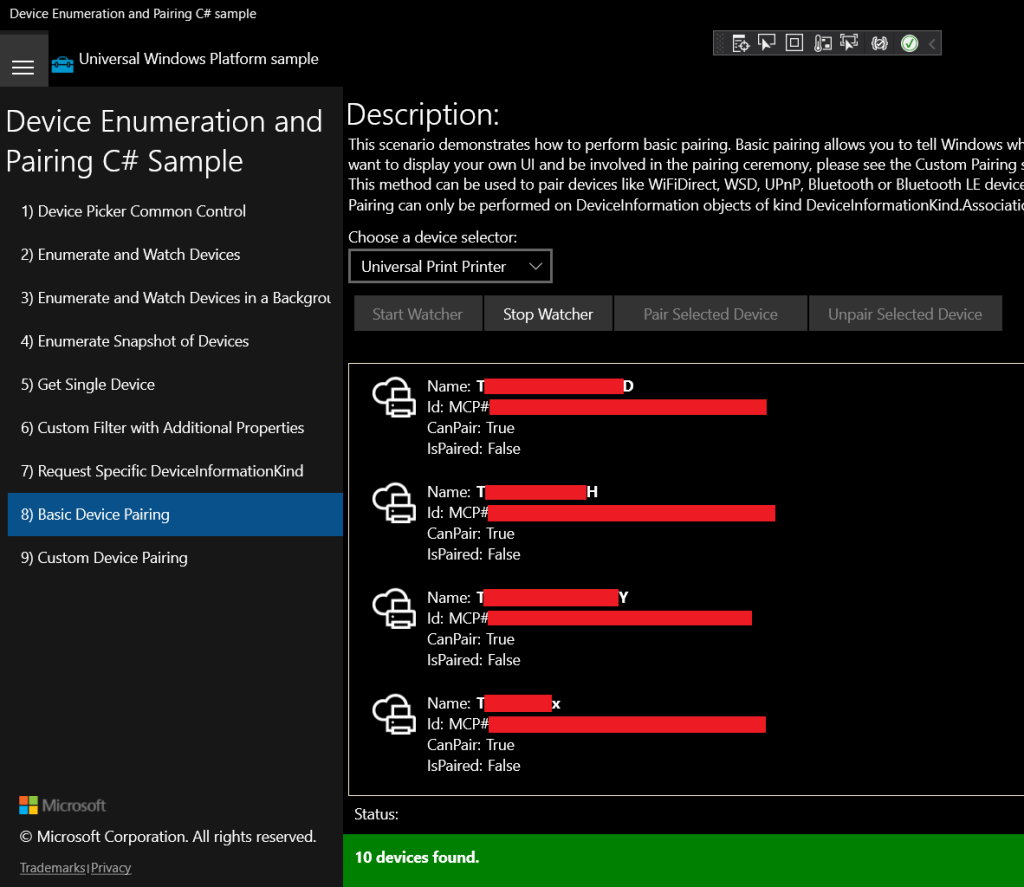
Quickly though, my hopes were dashed when I made an upsetting realization. I had provisioned close to 30 UP printers, but only 10 of them were being found. I spent several days probing for mistakes in the code, and trying various aqs queries. I tried enumerating UP printers via their AssociationEndpointContainer parents, and other various fruitless methods. No matter what I did, my code would only ever find 10 devices. Eventually I found my answer in a support article from Microsoft.

“If the printer is still not in the list of discovered printers, that could be caused by the fact that Windows shows the first 10 printers discovered from Universal Print in the order of their proximity to the user.”

To borrow a phrase from a coworker of mine, “Soul crusher…”. This behavior, for whatever reason, is completely by design.

Where there’s a will

Having used Universal Print in my testing for a few months, I knew that Windows was perfectly capable of enumerating more than 10 printers at a time. The initial search will always return 10 results, but you can click “Search Universal Print for printers” and find the complete list. After some trial and error, I believe I know how they’re doing this. I think the extended list of printers that is returned in the Devices and Printers area of Windows is actually constructed by querying the Graph API. The relevant endpoint here is https://graph.microsoft.com/v1.0/print/shares. A GET request to this endpoint will return a list of all the shares a user has permissions to connect to. This was useful for seeing all the printers I could connect to, but it wasn’t enough on its own to help me install printers that weren’t in the list of 10 devices returned to me by the DeviceWatcher in the sample application.

When I queried the printer shares I noticed something interesting. The ID of each printer share looked suspiciously like the IDs of the AssociationEndpoint DeviceInformation objects that were returned by the application’s DeviceWatcher. If my UP printer share’s ID through the Graph API was 00000000-0000-0000-0000-000000000000, the AssociationEndpoint DeviceInformation object’s ID would be MCP#00000000-0000-0000-0000-000000000000. Basically, every pairing object’s id was simply it’s Graph API ID with the prefix “MCP#”.

From here it just took a little more research to find that I could directly query and single UP printer whether or not it was in the list of 10 devices returned to me by the DeviceWatcher. In fact, the method doesn’t use a DeviceWatcher query at all. Instead it uses the DeviceInformation.CreateFromIdAsync() method of the Windows.Devices.Enumeration namespace to do the heavy lifting. I made a simple method that would take a passed in string in the form of a UP printer share id, create a Deviceinformation object from that id, and use that to pair the device.

/// <summary>
        /// Uses the ID of a UP printer share to pair the printer to Windows
        /// </summary>
        /// <param name="PrinterID"> ID of a printer share retrieved from the Graph API</param>
        private async void Pair_UPprinter_From_ID(string PrinterID)
        {
            //prepend MCP# to the string
            string AEPid = "MCP#" + PrinterID;
            //retrieve the Deviceinformation object from its ID
            var UPPrinter = await DeviceInformation.CreateFromIdAsync(AEPid);
            //perform the pairing operation
            DevicePairingResult Dpr = await UPPrinter.Pairing.PairAsync();

        }

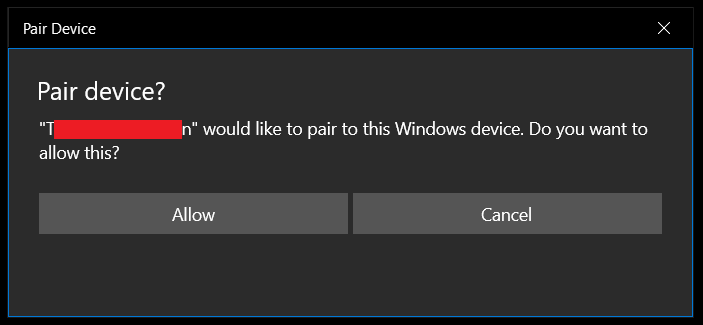
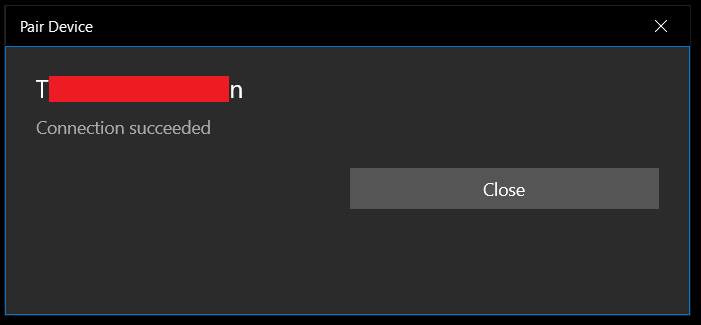
When the Pairing.PairAsync() method gets called. The user gets a nice little Windows popup asking if they want to connect to this device, and another window stating the status of the connection attempt.
UWP WTF

The big drawback to the above method is that it only works with a UWP application. When you try running the above code in a WPF application the DevicePairingResult will always be failure. The pairing action needs to be approved via the WPF GUI windows shown above. Without that approval, the pairing result is doomed to fail. Luckily, we can get around this issue with a slight adjustment to our code. Instead of using the default DeviceInformation.Pairing.PairAsync() method, you must use DeviceInformation.Pairing.Custom.PairAsync() if you’re not working with a UWP application.

The custom pairing method allows you to intercept pairing request, send it to your own custom UI and handle the “accept” or “deny” inputs from your own GUI. For complete simplicity, I’m going to show a method that simply always passes an “accept” input back to the pairing request without generating a popup or getting any input from the user.

/// <summary>
        /// Uses the ID of a UP printer share to pair the printer to Windows
        /// </summary>
        /// <param name="PrinterID"> ID of a printer share retrieved from the Graph API</param>
        private async void Pair_UPprinter_From_ID(string PrinterID)
        {
            //prepend MCP# to the string
            string AEPid = "MCP#" + PrinterID;
            //retrieve the Deviceinformation object from its ID
            var UPPrinter = await DeviceInformation.CreateFromIdAsync(AEPid);

            //add a custom pairing method to handle accepting the request
            UPPrinter.Pairing.Custom.PairingRequested += CustomPairingRequest;
                    
            //perform the custom pairing operation
            DevicePairingResult Dpr = await UPPrinter.Pairing.Custom.PairAsync(DevicePairingKinds.ConfirmOnly,                                  DevicePairingProtectionLevel.None);

            //remove the custom pairing method
            UPPrinter.Pairing.Custom.PairingRequested -= CustomPairingRequest;

        }

//A method to handle accepting the pairing request for non-UWP apps
public void CustomPairingRequest(DeviceInformationCustomPairing sender,DevicePairingRequestedEventArgs args)
        {
            
            args.Accept();
            
        }

And that’s pretty much all there is to say about that. Given the above information, you should be able to construct an application or script in any language that can handle installing Universal Print printers on demand.
Hero to the Downtrodden: Reverse Engineering and Improving Deathspank

Part 2 – An editor for “*.Datadict” and “*.Textdict” files

If you missed the other parts, they can be found here:

I’ve spent the last few weeks developing an editor that has the capability to edit Deathspank’s datadict files. Because I spent the last post describing why this editor was necessary, this post will mostly describe how to use the program, where you can download the executable and where you can view the source code for the program.

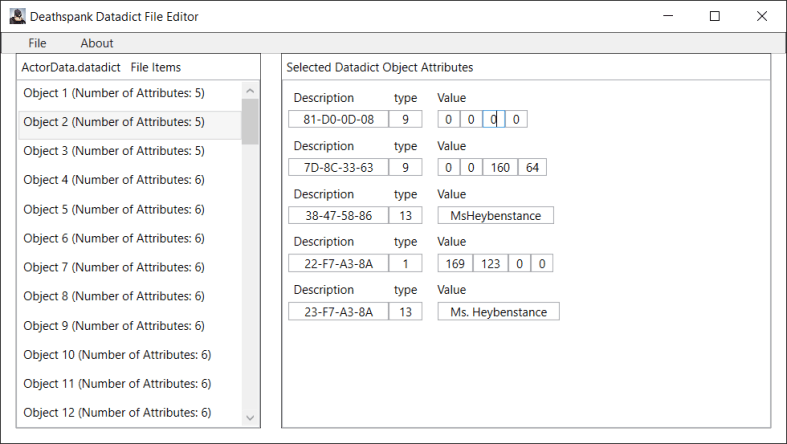
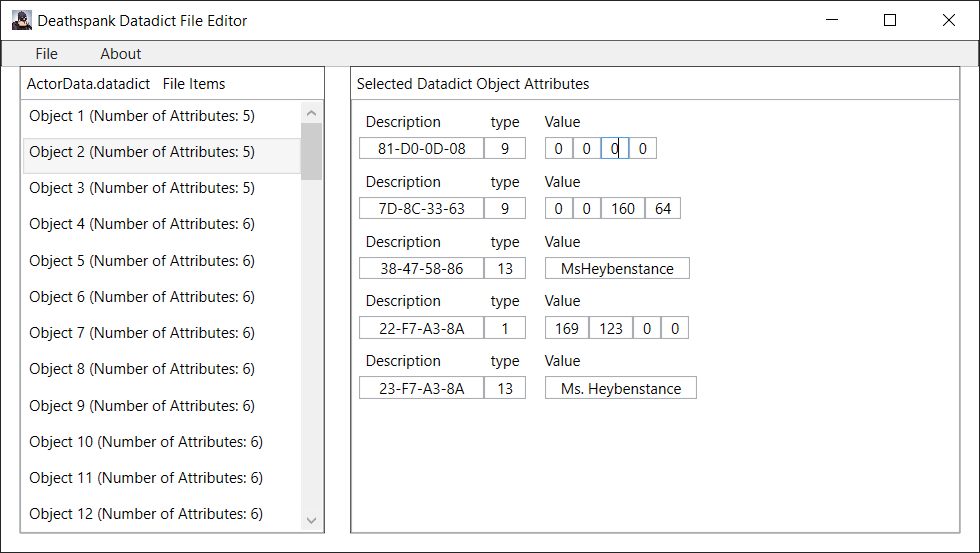
Behold, in all its glory!

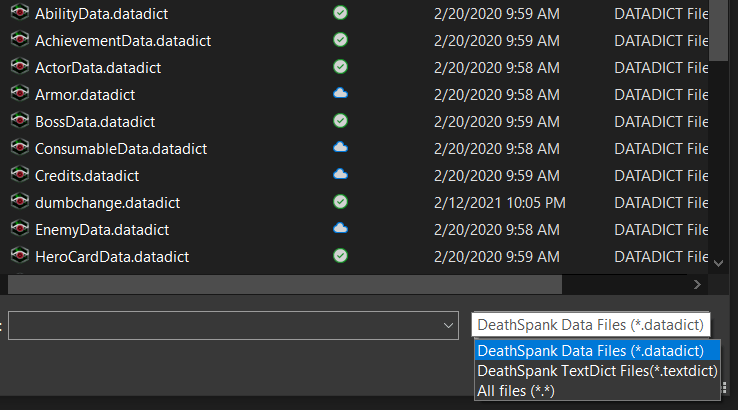
Alright, alright, I know it’s not much to look at, but you know what they say about getting what you pay for. The main toolbar has two menus. In the File menu you will find the option to open a file. By default, the file filter is set to only show files with a .datadict file extension. There are two additional filers that can be selected, one for .textdict files and one for all files. Even though the all files filter is available, I did my best to only allow a valid file to be opened by checking the header field of the file that is being opened.

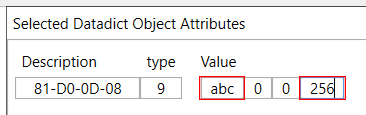
When a valid file is opened, the listbox on the left side of the window will populate with a list item for every object described in the file. When you select any of those objects, the attributes for that object will populate in the listbox on the right side of the window. Depending on the type of value each object has (4 bytes, 8 bytes, 16 bytes, string), you will see a different item template in the listbox. In the image above you can see examples of editable 4 byte and string values. A byte array to ASCII string converter was used to allow easier editing of sting values.

Because the editable value fields are bound to specific data types, you will see a red box around any field that contains an improper value, e.g. one that is of of range for a byte. Improper values will not be saved to the output file. I also made a choice to display the editable bytes in decimal form for those who don’t care to learn or deal with hexadecimal formatting. As I note at the end of the post, I’ll be putting in a toggle in the menu to allow the user to edit values in decimal or hexadecimal format.

Once you’ve edited all of the values you want to change, you can create a new file (or overwrite an existing file) by using the “File” >> “Save as” menu option. The Editor was programmed to read both the original datadict file structure and my new datadict file structure outlined in the last post. Regardless of which type of file was opened, this editor will output files that are in the new datadict format that doesn’t contain any form of compression/de-dupe so every attribute value in the file is unique and can be edited independently.

I’ve posted my source code on github for those of you who are interested. I’d love any constructive feedback if you have some. Remember I have absolutely zero formal programming training, so please be kind 🙂 .

Here is a direct link to the github page where the executable is hosted: https://github.com/JT-4/Deathspank-Datadict-Editor/releases

Source code: https://github.com/JT-4/Deathspank-Datadict-Editor

While I have done a bit of work with modifying file values, I certainly don’t know what every attribute does or how changing them affects things in-game. However here are a few fun things I have figured out.

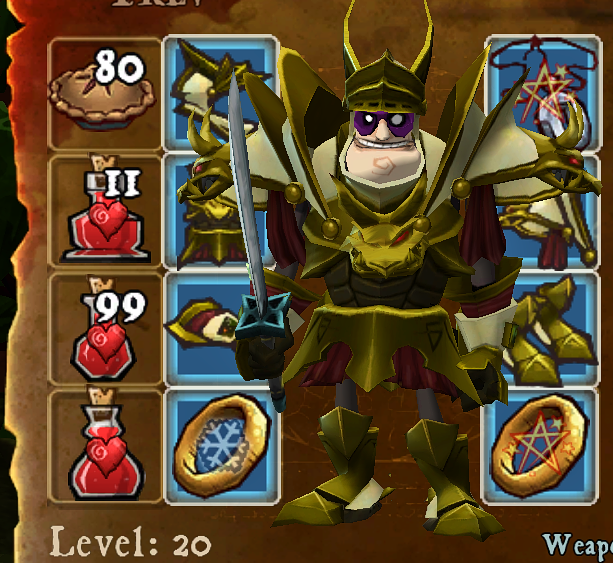
Let consumable items like potions, black holes, heck from heaven etc. stack up to 99 and remove the 5 item inventory limit

In the consumables.datadict (potions) and abilitydata.datadict (one time use items) files, find the item you want to modify. Change the attribute “99-2E-83-95” to the following byte values: 0,0,240,65

Increase the strength of the level 3 spinning sword

In the abilitydata.datadict file find the level three spinning sword object. Change the attribute “72-8C-3C-B1” to the following byte values: 0,0,176,65 to give the sword 1760 damage

Sometimes you just get lucky

By a stroke of luck, the game uses the same basic binary format for its textdict files that it uses for its datadict files. This means if you use a .gg archive unpacker to extract the textdict files (these files contain all of the dialog options in the game) you can use this editor to create a region-specific localization/translation of the game relatively easily.

Future improvements for the editor

I’ve used this editor to make a few simple edits so far and after doing so I’ve realized there are a few quality of life improvements I want to make.

  • I’d like to make a search box that will allow you to type a word and search through all of the objects to make finding what you are looking for easier.
  • I want to create a button to the right side of each editable value. Clicking this button will allow you to set every attribute value with that description to the value you’ve input for that attribute.
  • A menu toggle to switch between editing byte values in decimal and hexadecimal formatting.

Let me know down below if you have any ideas on how to make this better!

Editor: https://github.com/JT-4/Deathspank-Datadict-Editor/releases

Source code: https://github.com/JT-4/Deathspank-Datadict-Editor

Hero to the Downtrodden: Reverse Engineering and Improving Deathspank

Part 1 – Creating a new format for *.datadict files and why

Once or twice a year, there’s a game trilogy my wife and I like to play together. It’s a little-known series called the Deathspank series. It’s a comedic take on diablo style RPG loot grind games. It was made by a studio called Hothead games who seem to make exclusively mobile games these days. Originally, playing this game was a ploy to get my wife into gaming by playing a game where I can play the healer sidekick and she gets to do the bulk of the action as the game’s protagonist, but we’ve both come to really enjoy the series because of its great potential. However, every time we play through the trilogy we end up thinking things like, “wouldn’t it be great if this was different”, or “I wish the weapons worked like this” or “I wish my inventory wasn’t so annoying to manage”. I finally decided to do something about these annoyances recently. I set out to write my own mods for the game to improve a trilogy my wife and I have come to love so much.

This post will outline my efforts to modify the individual game files contained in the game’s “.gg” formatted archive files. First, let me say, to the unpack and repack the files from the archives, I’m using a tool created by a modder named Xraptor that can be found here. I’m not a huge fan of running modding tools created by people who don’t share their source code, but I haven’t completed work on my own packer tool and I’m fairly certain the program is safe to use.

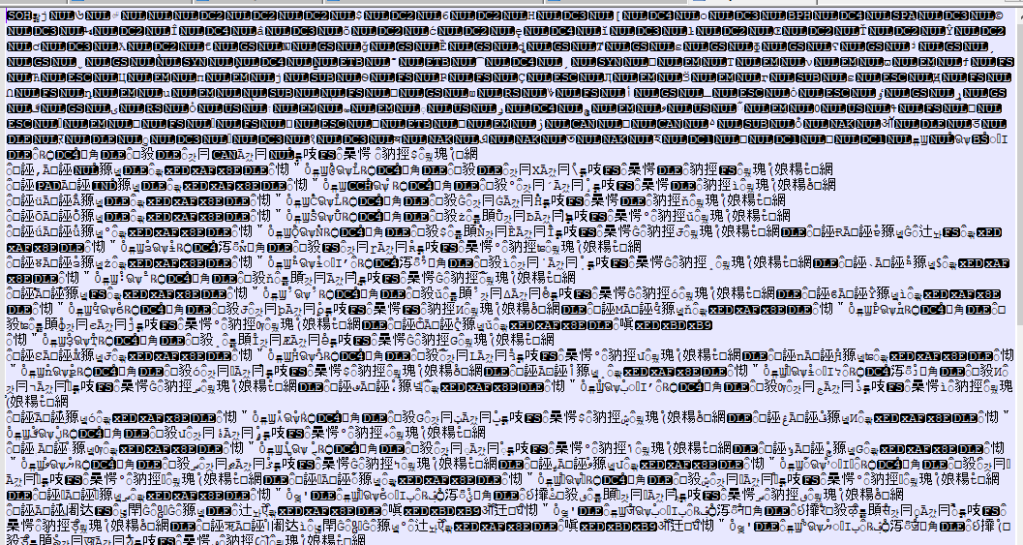
The very first goal I needed to accomplish before I could start modifying anything was to understand the data contained inside the files and their structure. The bulk of the game’s data files are contained in the GameData-000000000.gg” archive. Once unpacked, the files are located in the Build>Data folder. Unfortunately when I opened the first .datadict file I found in a notepad editor, I saw something that looked like this:

Yikes! It turns out the files contain binary data that is not easily editable inside a simple text editor. I was going to need to use a hex editor for this. Embarrassingly, I had no idea how to interpret hexadecimal at the time. I had a good grasp on binary thanks to the work I’ve done with networking and subnetting, but I had never looked into hexidecimal before this. A quick Google search gave me the information I needed, so I set out to reverse engineer the structure of the files.

File Structure

File Header

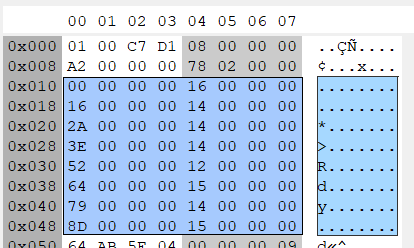
Each file is comprised of 4 sections, the beginning header block, the number of attributes per object block, the attribute description block, and the final data block where object data is stored. Lets start at the beginning. The beginning of the file contains several header fields. 4 to be exact. In all of the following examples I’m going to be using real data from the file that describes boss data. I will generally be capturing images from the hexeditor with the data organized into rows with 8 columns (bytes) because that is the easiest way to visually see the structure of this file type.

In the above image, I’ve highlighted the four header data fields. These field are each made up of 4 bytes in little endian format. The first field (first 4 bytes) serve as an identifier for the file type. The pattern 0x01,0x00,0xC7,0xD1 shows that this is a Deathspank “.datadict” file. Moving on, the second four bytes describe the number of objects that are described within the file. This file therefore describes the data for 8 objects. The third field can be thought of in several different ways. I think of this number as a representation of the length of the attribute lookup table that is found further into the file. Because each object attribute is described using a sequence of 8 bytes, the section of the file that describes the object attributes should be 1296 bytes in length (0xA2 * 8). The last field in the header block describes the length of the object data portion of the file. These file sections may be a bit confusing at the moment, but they should hopefully make sense by the end of the post.

Number of attributes per object

The next section of the file deals with how many attributes each of the 8 objects will have. Not all objects of the the same type (weapon, armor, item, boss, enemy) have the same number of attributes, so this section defines the number of attributes each object contains.

First, notice that there are 8 rows of data here. Each row corresponds to a particular in-game object. The first 4 bytes are an offset value used to locate where the object’s attribute descriptions start in the the next section of the file (the object attribute description block). The second four bytes tell you how many attributes that particular object will have. Starting at the beginning, as you might expect, the first object’s attributes start at offset 0x00 which is the very beginning of that section of the file. The second 4 byte series tells us that the object will have 0x16 ( 22) attributes. Because each attribute is always described with an 8 byte sequence, this means the first object will take up 0x16 * 8 (176) bytes. Going to the next object, it makes sense that this object’s starting offset is 0x16 * 8 (number of attributes times 8 bytes per attribute) or 176.

Object Attribute Description

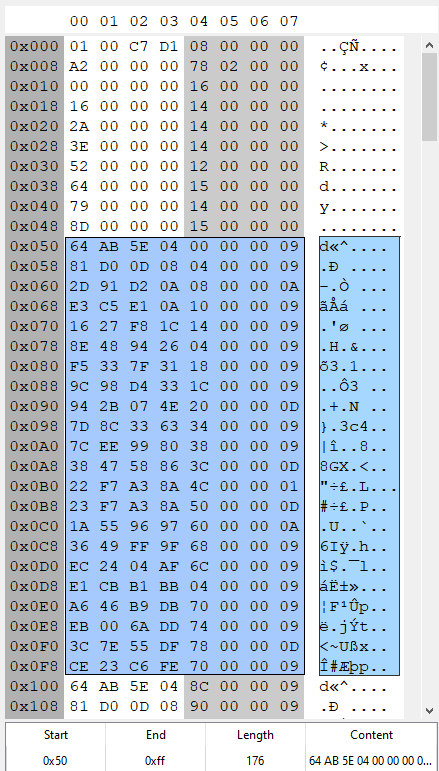
Moving on, the next section of the file describes the details of each attribute. Each attribute contains the following information: 4 bytes describing the type of attribute being described like a name, damage modifier etc. I consider this the attribute description. This is followed by 3 bytes telling us where to find the in-game value for the attribute in the next section of the file (the data block). Finally, there is a single byte describing the information type for the attribute. For example an information type of 0x0D means this attribute is a string and 0x09 is a 4 byte (32 bit) integer.

In this screenshot we can see the data structure changes when we get to the attribute description portion of the file. The highlighted section represents the first object’s attributes and their properties. Notice that there are 22 lines (8 byte segments) of attribute data and the length of the attribute data is 176 bytes just as we expected from our analysis of the previous “attributes per-object” portion of the file. Also, you can see that after the 22 lines describing the first object’s attributes, the attribute identifier (the first 4 bytes) start the repeat as we move on to the second object’s attributes.

Analyzing the very first attribute for the first object in the file we can see the attribute has a title/description/identifier of 0x64,0xAB,0x5E,0x04. The next 3 bytes tell us that the data for this attribute can be found at offset 0x00 inside the data block portion of the file. The last 1 byte of the 8 byte sequence tells us what type of data we expect to find at offset 0x00 in the data block. Type 0x09 means we can expect to find a 32 bit, 4byte integer value. I’m not 100% sure what every data type signifies, but I have learned the lengths of each data type.

  • Data type 0x01 and 0x09: 4 bytes
  • Data type 0x06 and 0x0A: 8 bytes
  • Data type 0x0C: 16 bytes
  • Data type 0x0D: variable length string data. This will always be a multiple of 4 bytes in length with 0x00 bytes terminating the string. To find the length of this data I run a check for the first occurrence of a 0x00 after the starting offset of the string. I run a check to see if the string length is evenly divisible by 4. If that fails I move one byte further in the data block and repeat the check. This should always give the correct data value for the string.

The Data Block (and the root of our issues)

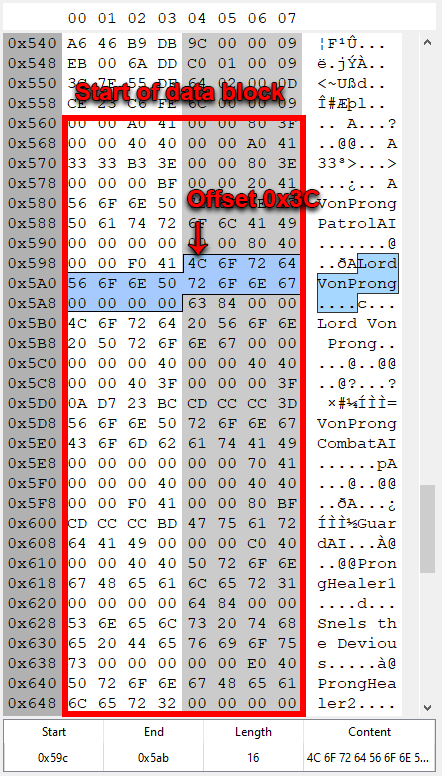
Finally, we’ve come the portion of the file that contains the data we want to modify. From the image above, we can find the in-game value for the first object in the file for attribute 0x38,0x47,0x58,0x86. It shows that this data should be a string and should be found at offset 0x3C (60). Moving to the data block we can see that we do indeed find a string at that location.

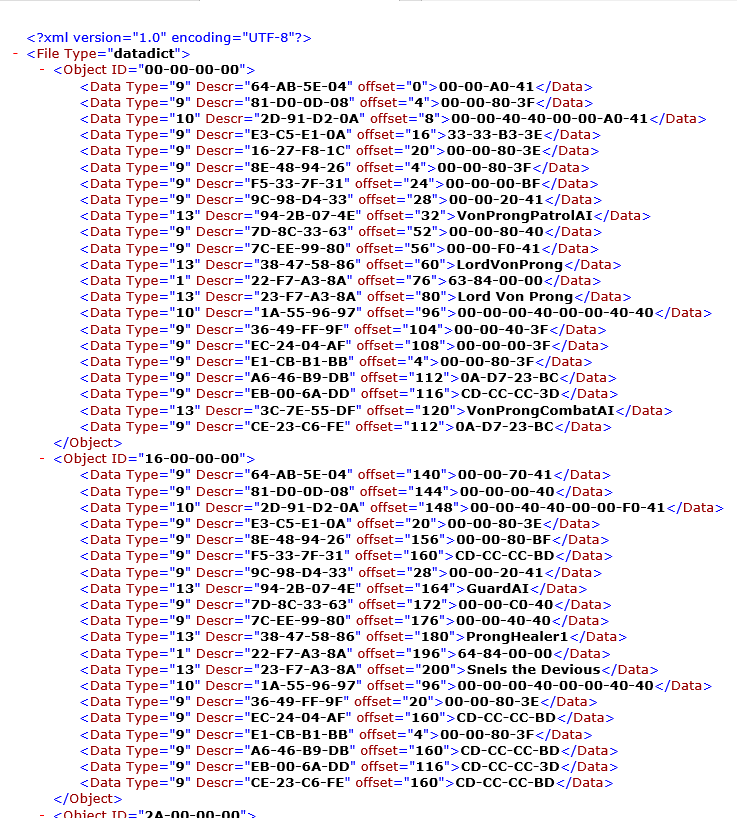
Using all of the pointers and offsets of the previous data, we should be able to lookup any in-game value contained within any given .datadict file. Using this knowledge, I wrote a simple program that converted the binary data into something human readable, XML.

Using this converted data I started changing values in the files to see what would happen in game. One of the first things I tried to do was to remove the arbitrary items per stack limit that is placed on consumable items like the one that summons an army of skeletons. Normally you can only hold 5 of these in your inventory at a time and there can only be 1 “stack” of them in your inventory at a time. I wanted to change this limit to 99 items per stack. In the original game, these items were really fun but they are so scarce and limited that you end up never using them and I wanted to change that. Quickly after modifying a few values for this consumable item, I noticed other in-game values were changed like weapon damage values and other random things. Going back to the data files the reason for this became very obvious.

Take a look at the image above. The first object in the list (ID 00-00-00-00) has several attributes that point to the same exact data block offset and the same data as other attributes. This means that the file employs a form of compression where it will never record the same value twice in the data block portion of the file. Instead, it will check if the value exists in the data block and if it does, it will just set the attribute data offset pointer to the existing value in the data block. This explains why multiple things were changing in the game when I was only tweaking a single value. It turned out that many objects were using the same data and when I changed it for one thing, it changed the value for all the objects that shared that value.

Fixing The Issue

At this point, the objective was perfectly clear. I needed to write a program that would read the game’s native files, remove any overlapping values in the data block so each object’s attributes can be edited individually, and update all of the offsets and pointers through the file so the game engine can still interpret the files correctly. I needed to do while keeping the native structure of the existing files. Using what I had already done to convert the files to .XML format, this wasn’t too difficult and for the most part, the files weren’t even that much bigger in size afterward.

Moving Forward

If you’ve followed along to this point you might be hoping for the source code to these programs, but I’m not ready to release them just yet (I certainly will soon ™ on github with full source code once I finish the companion app to to this work). If you understood the information in this this post, you should have everything you need to edit the files on your own and even potentially write you own file format converter. My next step is to write a simple app that lets you edit the newly created files in a convenient way. I’ve worked out what some of the attributes do but modifying the files is still a huge pain in the butt if you want to change the values for 10 different items at the same time.

Therefore my next goal is to create this new file editor application and then release both tools simultaneously so others can have fun modding Deathspank like I have. In all of my development thus far, I’ve used Azure Dev ops as my code repository because it’s private and I already use it for storing the code I write for my job and various personal projects. Please note, I’m by no means a professional programmer. I simply like to tinker with things in my spare time. I’ll be making a public github repository for these Deathspank apps so the tools are available for everyone. In my next post I’ll have a link to the code for both apps.

Long Term Goals

After making and sharing the two apps I described earlier, my long term goals are:

  • Write a new *.gg archive unpacker/re-packer that is compatible with all 3 games in the series. There is currently a tool for this but it doesn’t work for any of the DLC games files. I’ve been working on this fun project which involves breaking the archive encryption scheme. I think I have a solution for every form of encryption used in the archives. There is one for the file names and file descriptions and another form of encryption for the file data.
  • Finish a complete set of modified files a.k.a a “mod” and release it on nexus mods for others who want a different in-game experience with modified game balance, level cap, experience gains, special ability powers , sidekick abilities, character models etc .
  • Fix a game crashing glitch present in the 3rd game caused by improper enemy spawn points in Chastity Nuclear’s quest area.

Until next time, happy modding!

You can Ring™ my bell… with Powershell *Updated*

Last time, on the Ring my bell adventures, we explored using powershell to have a bit of fun with our doorbells. Unfortunately since then, about a million people went and used “password” as their password and were then surprised when their cameras were “hacked” which caused Ring to make sweeping changes to their security which broke my fun little script. I recently read my own eerily accurate horoscope profile that read, “You try too hard at dumb things”, so let set about fixing what was broken.

First, lets go over some of the changes that caused our previous script to stop working.

  • As far as I’m aware, every ring account must use a method of 2 factor authentication (2FA) for any login event, including generating access tokens for the Ring API. This can be delivered through either Email or SMS text messaging.
  • Only one Email address can be associated to a “location” containing Ring products as the Owner.
  • Users who are not the Owner of a location will only be able to see doorbell objects or “Doorbots” and not chimes. I’m pretty sure this means the script will only work for location owners. Sorry, no ringing your neighbor’s doorbell.
  • While the chimes enpoint still exists, it has different behaviour. Information about chimes is now gathered through the “ring_devices”/{chime id} endpoint even though ringing a chime still takes place through /chimes/{chime id}/play_sound

With that out of the way lets jump into into it. I knew right off the bat I’d want to have a function to handle the authentication. This would let me use the same function for both getting a 2FA code and for getting an access token once the 2FA code was obtained. I started with a simple simple function containing a single parameter name code. This will allow us to pass in our 2FA code later on. (Complete function at the end of the post)


Function Generate-RingOauthToken{

param(    
        [Parameter(Mandatory=$false)]
        [string]
        $Code
)

#define the Endpoint for granting acess tokens
#this is also the endpoint for generating a 2FA code
$uri = "https://oauth.ring.com/oauth/token"

The next event for the function is to handle the username and password that will be used to authenticate. I wrote this portion two different ways. At first I used a read-host prompt to have the user type in their username and password with a secure prompt used for the password. Because you have to run the function twice, once for the 2FA code and once for the token, and I had to run this a number of times to get it working I ended up changing it to a simple plain text entry in the script. I’ll post both options below.

Prompt user for username and secure password:

#prompt the user for their username, if empty or only spaces throw an error and exit the function
$username = Read-Host -Prompt "Username"
if([string]::IsNullOrWhiteSpace($username)){
    Write-Error -Message "The Username was either blank or it could not be validated" -Category InvalidData
    exit
}

#prompt the user for their password, if empty or only spaces throw an error and exit the function
$Secpassword = Read-Host -Prompt "password" -AsSecureString
if([string]::IsNullOrWhiteSpace($Secpassword)){
    Write-Error -Message "The Username was either blank or it could not be validated" -Category InvalidData
    exit
}

#create a PSCredential object to hold the username and password
$credential = New-Object System.Management.Automation.PSCredential ($userName, $SecPassword)

#extract the plaintext password from the securestring password of the PSCredential object
$password = $credential.GetNetworkCredential().Password

Or the less secure but worlds more convenient option. Side note, I actually use a function to store machine specific secure string passwords to my Onedrive and another function to retrieve the correct encrypted secure string from Onedrive for the machine I’m on and the password I need but that’s a function for another time.

$username = "YourUsernameHERE"
$password = "YourPasswordHERE"

Next we need a hash table that should look familiar if you read my last post. This will be the body object that gets sent with our POST request. I played around with this and found that a client id of “RingWindows” will work here as well.

#define the parameters used to authenticate
 $Authbody = @{
    client_id = "ring_official_android"
    grant_type = "password"
    scope = "client"
    username = $username
    password = $password
}

The next section validates whether or not the user passed in a 2FA code. If a 2FA code was used, one set of header fields is generated containing the 2FA code . If not, a different set of header fields are used that signify the user needs a new 2FA code to be generated.

#if a 2FA code was supplied generate a hashtable for the header fields
#containing the code
If(!([string]::IsNullOrWhiteSpace($Code))){

    $authheaders = @{
    'Content-Type' = 'application/x-www-form-urlencoded';
    'charset' = 'UTF-8';
    'User-Agent' = 'Dalvik/2.1.0 (Linux; U; Android 9.0; SM-G850F Build/LRX22G)';
    'Accept-Encoding' = 'gzip, deflate'
    '2fa-support' = 'true'
    '2fa-code' = $Code
 
    } 

}else{

#otherwise use the standard headers indicating the user needs a new 2FA code
#to be generated
$authheaders= @{
    
    'Content-Type' = 'application/x-www-form-urlencoded';
    'charset' = 'UTF-8';
    'User-Agent' = 'Dalvik/2.1.0 (Linux; U; Android 9.0; SM-G850F Build/LRX22G)';
    'Accept-Encoding' = 'gzip, deflate'
    
    }

}

Finally we get to the part where we actually ask for an authorization token or a 2FA code. I was a bit surprised to see that when a successful auth call is made to get a 2FA code, an error is returned rather than a success. Furthermore, the useful information about where the 2FA code was sent is contained in the error message returned. That means that if this function is run without the “-code” switch it will always return an error.

  • Error 400 – The 2FA code supplied is invalid
  • Error 401 – Bad username and password
  • Error 412 – Authorization successful, 2FA was generated and sent
  • Error 429 – Your request was throttled. Too many requests have been made

It seems a bit weird to me to handle a successful event by throwing an error, but hey, I’m just some good looking guy. What do I know ¯\_(ツ)_/¯ ? I decided to handle this by parsing the error from the Invoke-RestMethod request in a try/catch block so the relevant information was easily visible. The default error object doesn’t show all of the useful information.

try{

$Authrequest = Invoke-RestMethod -Uri $uri -Method Post -Body $Authbody -Headers $authheaders -ErrorAction Stop

}
catch{
    
    $message = $error[0].ErrorDetails.Message | ConvertFrom-Json
    $exception = $error[0].Exception.Message    

    return $message
    EXIT
}

Finally, the only think left is to return the Token object if the request was successful and close out of the function.

return $Authrequest

} 

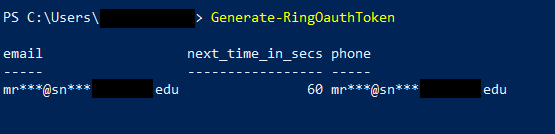
Now that the Function is complete how do we use it? Simple. Either paste the function into your powershell console or save it to your powershell profile and then launch powershell. Now type Generate-RingOauthToken. Here you can see the result when a 2FA code is sent to you via Email. When you receive codes via SMS text messages you will only see the next_time_in_secs and phone parameters and the phone value will be an obfuscated representation of the phone number on your account.

Once you receive the 6 digit 2FA code, run the function again with the “-code” switch to generate a token for later use like this.

$token = (Generate-RingOauthToken -code xxxxxx).access_token

With our token in hand we can query the devices in our account. This is handled through a different endpoint than before. Record the ID of the chime you’d like to make ring.

#get all chime devices
$chimes = (Invoke-RestMethod -Method get -Uri 'https://api.ring.com/clients_api/ring_devices' -Headers @{Authorization = "Bearer $token"}).chimes

#get all doorbell devices
$doorbells = (Invoke-RestMethod -Method get -Uri 'https://api.ring.com/clients_api/ring_devices' -Headers @{Authorization = "Bearer $token"}).doorbots

#quick access reference for the object IDs of all chimes in the account
$chimes.ID
#quick access reference for the object IDs of all doorbells in the account
$doorbells.ID

After you find the particular device ID for the chime you want to make ring, run the following command to make it so. Replace “{ChimeID}” with the ID you found from the preceding commands.

Invoke-WebRequest -Method post -Uri 'https://api.ring.com/clients_api/chimes/{ChimeID}/play_sound' -Headers @{Authorization = "Bearer $token"}

There you have it. One broken script restored to its former glory.

I’ll place the entire token generation function below so it’s all together in one place. I left both authentication methods (manual typing and stored in plain text) in the script so comment out one and use the other if you’d like.

Function Generate-RingOauthToken{

param(    
        [Parameter(Mandatory=$false)]
        [string]
        $Code
)

#define the Endpoint for granting access tokens
#this is also the endpoint for generating a 2FA code
$uri = "https://oauth.ring.com/oauth/token"


<#

This area was commented out in favor of putting the credentials in the script so you don't
have to type username and pw twice per token grant

#prompt the user for their username, if empty or only spaces throw an error and exit the function
$username = Read-Host -Prompt "Username"
if([string]::IsNullOrWhiteSpace($username)){
    Write-Error -Message "The Username was either blank or it could not be validated" -Category InvalidData
    exit
}

#prompt the user for their username, if empty or only spaces throw an error and exit the function
$Secpassword = Read-Host -Prompt "password" -AsSecureString
if([string]::IsNullOrWhiteSpace($Secpassword)){
    Write-Error -Message "The Username was either blank or it could not be validated" -Category InvalidData
    exit
}

#create a PSCredential object to hold the username and password
$credential = New-Object System.Management.Automation.PSCredential ($userName, $SecPassword)

#extract the plaintext password from the securestring password of the PSCredential object
$password = $credential.GetNetworkCredential().Password

#>

#plaintext username and password. Comment out these two lines and uncomment the block 
#above to use manual username and password typing
$username = "YourUsernameHere"
$password = "YourPasswordHere"

#define the parameters used to authenticate
 $Authbody = @{
    client_id = "ring_official_android"
    grant_type = "password"
    scope = "client"
    username = $username
    password = $password
}

#if a 2FA code was supplied generate a hashtable for the header fields
#containing the code
If(!([string]::IsNullOrWhiteSpace($Code))){

    $authheaders = @{
    'Content-Type' = 'application/x-www-form-urlencoded';
    'charset' = 'UTF-8';
    'User-Agent' = 'Dalvik/2.1.0 (Linux; U; Android 9.0; SM-G850F Build/LRX22G)';
    'Accept-Encoding' = 'gzip, deflate'
    '2fa-support' = 'true'
    '2fa-code' = $Code
 
    } 

}else{

#otherwise use the standard headers indicating the user needs a new 2FA code
#to be generated
$authheaders= @{
    
    'Content-Type' = 'application/x-www-form-urlencoded';
    'charset' = 'UTF-8';
    'User-Agent' = 'Dalvik/2.1.0 (Linux; U; Android 9.0; SM-G850F Build/LRX22G)';
    'Accept-Encoding' = 'gzip, deflate'
    
    }

}


try{

#make an authentication request for a token or 2FA Code
$Authrequest = Invoke-RestMethod -Uri $uri -Method Post -Body $Authbody -Headers $authheaders -ErrorAction Stop

}
catch{
    
    #return the parsed error message to the user
    $message = $error[0].ErrorDetails.Message | ConvertFrom-Json
    $exception = $error[0].Exception.Message    

    return $message
    EXIT


}

#if successful, return the access token
return $Authrequest


} 

They said no, I said Flow. Getting Cisco voicemails in Microsoft Teams. (Part 1)

I recently started playing with some of the advanced calling features available in Microsoft Teams, specifically the voicemail features. For years our organization has had an on-premises Cisco based phone system. Through the use of Unified Messaging, we receive email notifications in our Outlook inbox when we miss a call and someone left us a voicemail. We can listen to the attached .wav file without having to “dial in” and check them manually. I was pleasantly surprised when I realized that Teams has its own cloud voicemail capabilities built into its calling feature. When a message is left on a missed Teams call, I get a message in both my outlook and my Teams app and I can listen to the message in either place. The service will even give you a speech to text transcription of the message.

I love the idea of having all of my important content in a single work space, so the wheels in my head started turning. I wondered if it would be possible for our Cisco unified messaging system to send me voicemails that were visible in both my outlook and my teams console. I checked a few settings on the Cisco and Teams side of things and I didn’t see an obvious solutions so I went to Microsoft support. Because we do not have a session border controller and we have not extended our calling system to the cloud, I was told, “these two systems are completely separate and as such it will not be possible to receive your Cisco voicemails in your teams console”.

My response:

Image result for john locke don't tell me what i can't do

I dug into the documentation for Microsoft’s cloud voicemail and how it interacts with Teams. It turns out, the Teams app is just looking at a user’s Email inbox and scanning for Emails with certain “SingleValueExtendedProperties” tags on them. Emails that match these criteria are considered cloud voicemails and will show up in your list of voicemails in Teams. With the help of a blog post: https://gsexdev.blogspot.com/2019/05/ I was able to use the Microsoft graph API to spoof a cloud voicemail email and have that message show up in both my inbox and my Teams console. Armed with a small bit of success, I knew what needed to be done. If I could make a regular old Email appear to be a cloud voicemail in the eyes of Teams, I was going to find a way to automate this process and convert all of my Cisco voicemails to Teams cloud voicemails.

Automation, APIs, and Microsoft, this sounded like a perfect excuse to use Microsoft Flow. I had a plan. If I could make a Graph API POST call create a cloud voicemail Email, I should be able to use a PATCH request to convert an existing one, so I set about designing my flow.

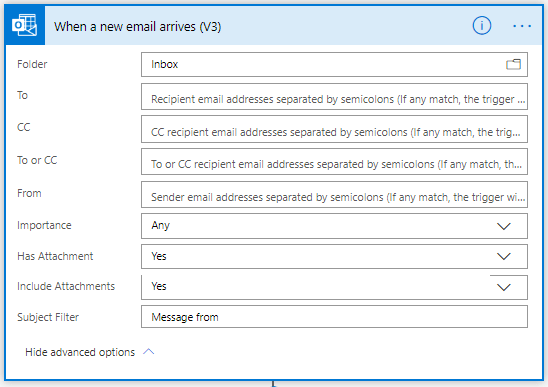
The first step was obvious. I wanted to make a automated flow that was triggered whenever I received an email.

If the email matches the subject line filter of “Message from” and it has an attachment, the flow gets triggered. From there, I create four variables. First, I create “upn” and set it the value of the “To” field of the Email. This should capture my email address which is also my Userprincipalname. Second, I create “messageid” and set it the the global unique identifier propertiy of the Email that was received. We will need this value later on to convert this specific email. Next I create “Uri” using values from the last two variables that were created. This string is the URI endpoint to which we will be sending our PATCH request. Finally I create “attachmentcontent” and I do not assign it an initial value. We will set the value in the next step.

After initializing these variables that are necessary for making the PATCH request. I had one more variable to set. I wanted to know how long (in seconds) the voicemail was. Teams displays this value for each voicemail that is received and I wanted it to be accurate.

The .wav files that are generated by the Cisco voicemail system contain a length attribute, but unfortunately this value is not parsed by Microsoft Flow. The only values I could see were the unique identifier for the attachment, name, size in bytes, and file format. This meant I had to do a little calculation. Additionally, any time I tried to set a variable based on the attachment properties, it put that process inside of a ‘apply to each’ loop. I guessing that’s to account for Emails with multiple attachments. In the end, My next step looked like this:

This step took each attachment, in my case there should only be one, and it extracts the size of the attachment in bytes using the expression shown above “items(‘Apply_to_each’)?[‘size’]”. That value then gets set to the blank variable we created earlier.

Based on the recording quality of our phone system, 64kbps, I found that the following formula gave a fairly accurate estimation of the file length: (Size in bytes)/8100 = (file length). I initialized a new variable using this formula to save the file length property using a custom expression.

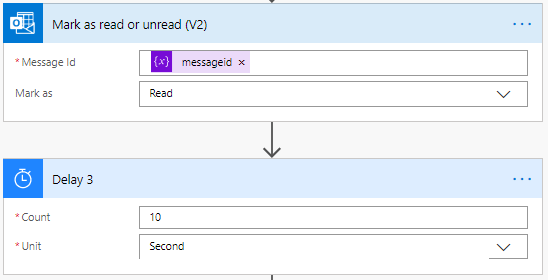
At this point, I’ve stored all of the values I need to make my idea come to life. I can start actually doing things. This first action I need to take is to mark the message as read and then wait 10 seconds. This is an important process because it makes the Cisco phone system believe the message has been listened to and it clears the little red “you have voicemails” light from my phone. I found I had to wait 10 seconds before continuing to account for latency and other factors to make sure the phone system sees the message as read. It’s important to take this step first because once the Email gets converted into a cloud voicemail Email, it breaks the relationship to the phone system and the only way to get the phone system to realize the message has been listened to is to actually dial in and listen manually.

Now comes the actual conversion process. We will use the HTTP connector in Flow to make a PATCH request using Azure OAUTH authentication. This requires an Azure application set up with the appropriate permission. You can find the setup instructions for such apps here: https://docs.microsoft.com/en-us/azure/active-directory/develop/quickstart-register-app or on a number of other blogs. For the HTTP process, we set the method to PATCH in order to modify an existing object. For the URI we use the variable we set earlier to reference the URI for the message we want to modify. I set the headers to with the value “content-type”=”application/json”.

For the body of the request, I constructed a JSON statement with an array of values for the “singleValueExtendedProperties” property of the email. These are the actual changes that will be written to the Email object. I use  IPM.Note.Microsoft.Voicemail.UM.CA to set the ItemClass of the message to a voicemail. X-VoiceMessageConfidenceLevel is an undocumented property, but it is generally set to high. Next I use the wavelength variable to set the length of the voicemail message. Finally, I use the X-VoiceMessageTranscription property to set the speech to text transcription property. We currently don’t use this feature on our Cisco phone system so I set this value to a static string to let me know this is a converted Email.

Now I need to set the authentication for the HTTP process. I’ve redacted my values but you can find them all in Azure AD by selecting your app under application registrations. The secret key can be found or generated on the certificates & secrets page for your application.

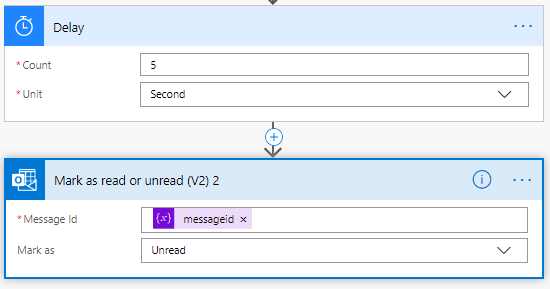
Now the message has been converted and the connection between that Email and the Cisco phone system has been severed. There are only two things left to do. First, I add a 5 second delay to let the change propagate back to the phone system, then I mark the Email as unread so I see the alert in my Teams console and Outlook.

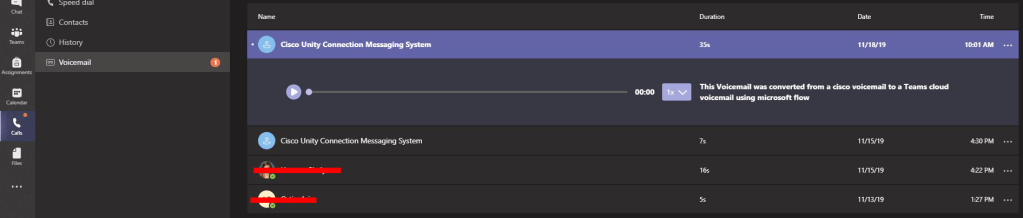
Lets take a look at the end result. I see a notification in my teams console where I can listen to the message attachment. Listening to the message in Teams marks the message as read in Outlook and visa-versa. The message duration is displayed correctly and should be accurate. If the person who left the voicemail is a member of our organization I see their user details in teams because the Cisco UM message is associated to their account and if not, I see the email came from the Cisco message system.

Let this be a lesson to you all. Don’t tell me something is impossible unless you want to end up holding my beer.

Next time we’ll go over a few improvements as well as setting up voicemail conversions for multiple users with a single Flow.

You can Ring™ my bell… with Powershell

Doorbell that is.

*UPDATE* The method described below no longer works. Ring has changed the authentication process as well as the functionality of a number of endpoints. The new method can be found here: https://overkillscripting.home.blog/2020/07/19/you-can-ring-my-bell-with-powershell-updated/

Recently my office decided to get rid of our old 2.4 GHz wireless doorbell. It operated by sending a signal from our receiving door to a doorbell receiver in our office about 30 feet away. It was unreliable, and the batteries would constantly die in the middle of the work day causing us to miss important deliveries.

Being a technology focused workplace, we went looking for something that was more “on our level” which lead us to the Ring doorbell. Once it was all set up I knew how I’d be spending the next 30 minutes of my life: trying to ring the doorbell using only powershell.

Unfortunately, I couldn’t find anyone who had documented how to do this, and furthermore the API was completely undocumented. I couldn’t find a single write-up of someone interacting with the Ring API using Powershell. 

The closest thing I found was a github python project.

Fortunately, this project had already exposed all of the API endpoints so all I had to do was get to work.

The first thing to do with any API is to figure out how to authenticate to it. Once you are able to authenticate, you can generate an OAUTH token. Then, using that token you can make standard GET and POST commands using the token that was generated. To create an access token all you will need are your username and password which you can replace in the code below.

# Necessary information for generating an access token
# Construct the body of the token request
    $body = @{
    client_id = "ring_official_android"
    grant_type = "password"
    scope = "client"
    username = "YourUsernmae"
    password = "YourPassword"
}

#set the header content
    $headers = @{
    
    'Content-Type' = 'application/x-www-form-urlencoded';
    'charset' = 'UTF-8';
    'User-Agent' = 'Dalvik/1.6.0 (Linux; Android 4.4.4; Build/KTU84Q)';
    'Accept-Encoding' = 'gzip, deflate'
    
    }

#Set the token request URI
$uri = 'https://oauth.ring.com/oauth/token'

Using this construction, we’re ready to generate an access token. In the first command we receive the raw token data. and in the second we convert that raw data into the correct format so we can use it later on.

# Get OAuth Token
$tokenRequest = Invoke-WebRequest -Method Post -Uri $uri -Body $body -UseBasicParsing -Headers $headers

#convert the token data into a useable format
$token = ($tokenRequest.Content | ConvertFrom-Json).access_token

With our authorization token in hand we’re ready to start querying our setup to get some information specific to our account. Notice we’re now passing the OAUTH token “$token” into the header information of our API call. First, lets start by gathering information about all of our doorbells and chimes.

#Get information about all Chimes and doorbell objects

$chimes = ((Invoke-WebRequest -Method get -Uri 'https://api.ring.com/clients_api/chimes/' -Headers @{Authorization = "Bearer $token"}).content | ConvertFrom-Json).chimes


$doorbells = ((Invoke-WebRequest -Method get -Uri 'https://api.ring.com/clients_api/doorbots/' -Headers @{Authorization = "Bearer $token"}).content | ConvertFrom-Json).doorbots

#quick access reference for the object IDs
$chimes.ID
$doorbells.ID

To interact with a specific chime or doorbell you need to reference the object via its “ID” attribute. At this point we have everything we need to accomplish our goal, so lets put it all together. The URI for ringing a chime is “https://api.ring.com/clients_api/chimes/{chimeID}/play_sound” and it requires a POST request method.

#  The command below will ring the doorbell replace {chimeID} with the ID
# of the chime you want to ring

$RingMyBell = Invoke-WebRequest -Method post -Uri 'https://api.ring.com/clients_api/chimes/{chimeID}/play_sound' -Headers @{Authorization = "Bearer $token"}

Success! We’ve now successfully fooled everyone in the office into thinking there’s someone at the door.

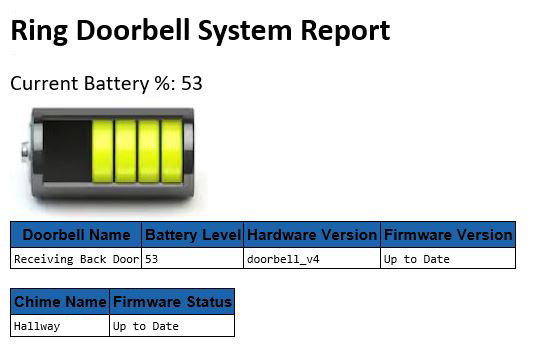
Taking this a step further, I used the endpoints (see the end of the post) I pulled from the python project to make a semi-regular email report that goes out to everyone in the office. We still haven’t had time to run a dedicated power line out to the doorbell so my report queries the battery status, and a few other things, so we always know when we will need to swap out the batteries. The embedded image even changes depending on the level of the battery for a nice at a glace update.

Well, that’s it for my first post. I’ll leave you with the rest of the Ring API endpoints so you can take them and have some fun with them.

<#
# API endpoints
OAUTH ENDPOINT = 'https://oauth.ring.com/oauth/token'
API VERSION = '9'
API URI = 'https://api.ring.com'
CHIMES ENDPOINT = '/clients_api/chimes/{0}'
DEVICES ENDPOINT = '/clients_api/ring_devices'
DINGS ENDPOINT = '/clients_api/dings/active'
DOORBELLS ENDPOINT = '/clients_api/doorbots/{0}'
PERSIST TOKEN_ENDPOINT = '/clients_api/device'

HEALTH DOORBELL ENDPOINT = DOORBELLS_ENDPOINT + '/health'
HEALTH CHIMES ENDPOINT = CHIMES_ENDPOINT + '/health'
LIGHTS ENDPOINT = DOORBELLS_ENDPOINT + '/floodlight_light_{1}'
LINKED CHIMES ENDPOINT = CHIMES_ENDPOINT + '/linked_doorbots'
LIVE STREAMING ENDPOINT = DOORBELLS_ENDPOINT + '/vod'
NEW SESSION ENDPOINT = '/clients_api/session'
RINGTONES ENDPOINT = '/ringtones'
SIREN ENDPOINT = DOORBELLS_ENDPOINT + '/siren_{1}'
SNAPSHOT ENDPOINT = "/clients_api/snapshots/image/{0}"
SNAPSHOT TIMESTAMP_ENDPOINT = "/clients_api/snapshots/timestamps"
TESTSOUND CHIME ENDPOINT = CHIMES_ENDPOINT + '/play_sound'
URL DOORBELL HISTORY = DOORBELLS_ENDPOINT + '/history'
URL RECORDING = '/clients_api/dings/{0}/recording'
#>