Last time, on the Ring my bell adventures, we explored using powershell to have a bit of fun with our doorbells. Unfortunately since then, about a million people went and used “password” as their password and were then surprised when their cameras were “hacked” which caused Ring to make sweeping changes to their security which broke my fun little script. I recently read my own eerily accurate horoscope profile that read, “You try too hard at dumb things”, so let set about fixing what was broken.
First, lets go over some of the changes that caused our previous script to stop working.
- As far as I’m aware, every ring account must use a method of 2 factor authentication (2FA) for any login event, including generating access tokens for the Ring API. This can be delivered through either Email or SMS text messaging.
- Only one Email address can be associated to a “location” containing Ring products as the Owner.
- Users who are not the Owner of a location will only be able to see doorbell objects or “Doorbots” and not chimes. I’m pretty sure this means the script will only work for location owners. Sorry, no ringing your neighbor’s doorbell.
- While the chimes enpoint still exists, it has different behaviour. Information about chimes is now gathered through the “ring_devices”/{chime id} endpoint even though ringing a chime still takes place through /chimes/{chime id}/play_sound
With that out of the way lets jump into into it. I knew right off the bat I’d want to have a function to handle the authentication. This would let me use the same function for both getting a 2FA code and for getting an access token once the 2FA code was obtained. I started with a simple simple function containing a single parameter name code. This will allow us to pass in our 2FA code later on. (Complete function at the end of the post)
Function Generate-RingOauthToken{

param(
        [Parameter(Mandatory=$false)]
        [string]
        $Code
)

#define the Endpoint for granting acess tokens
#this is also the endpoint for generating a 2FA code
$uri = "https://oauth.ring.com/oauth/token"
The next event for the function is to handle the username and password that will be used to authenticate. I wrote this portion two different ways. At first I used a read-host prompt to have the user type in their username and password with a secure prompt used for the password. Because you have to run the function twice, once for the 2FA code and once for the token, and I had to run this a number of times to get it working I ended up changing it to a simple plain text entry in the script. I’ll post both options below.
Prompt user for username and secure password:
#prompt the user for their username, if empty or only spaces throw an error and exit the function
$username = Read-Host -Prompt "Username"
if([string]::IsNullOrWhiteSpace($username)){
    Write-Error -Message "The Username was either blank or it could not be validated" -Category InvalidData
    exit
}

#prompt the user for their password, if empty or only spaces throw an error and exit the function
$Secpassword = Read-Host -Prompt "password" -AsSecureString
if([string]::IsNullOrWhiteSpace($Secpassword)){
    Write-Error -Message "The Username was either blank or it could not be validated" -Category InvalidData
    exit
}

#create a PSCredential object to hold the username and password
$credential = New-Object System.Management.Automation.PSCredential ($userName, $SecPassword)

#extract the plaintext password from the securestring password of the PSCredential object
$password = $credential.GetNetworkCredential().Password
Or the less secure but worlds more convenient option. Side note, I actually use a function to store machine specific secure string passwords to my Onedrive and another function to retrieve the correct encrypted secure string from Onedrive for the machine I’m on and the password I need but that’s a function for another time.
$username = "YourUsernameHERE"
$password = "YourPasswordHERE"
Next we need a hash table that should look familiar if you read my last post. This will be the body object that gets sent with our POST request. I played around with this and found that a client id of “RingWindows” will work here as well.
#define the parameters used to authenticate
 $Authbody = @{
    client_id = "ring_official_android"
    grant_type = "password"
    scope = "client"
    username = $username
    password = $password
}
The next section validates whether or not the user passed in a 2FA code. If a 2FA code was used, one set of header fields is generated containing the 2FA code . If not, a different set of header fields are used that signify the user needs a new 2FA code to be generated.
#if a 2FA code was supplied generate a hashtable for the header fields
#containing the code
If(!([string]::IsNullOrWhiteSpace($Code))){

    $authheaders = @{
    'Content-Type' = 'application/x-www-form-urlencoded';
    'charset' = 'UTF-8';
    'User-Agent' = 'Dalvik/2.1.0 (Linux; U; Android 9.0; SM-G850F Build/LRX22G)';
    'Accept-Encoding' = 'gzip, deflate'
    '2fa-support' = 'true'
    '2fa-code' = $Code

    }

}else{

#otherwise use the standard headers indicating the user needs a new 2FA code
#to be generated
$authheaders= @{

    'Content-Type' = 'application/x-www-form-urlencoded';
    'charset' = 'UTF-8';
    'User-Agent' = 'Dalvik/2.1.0 (Linux; U; Android 9.0; SM-G850F Build/LRX22G)';
    'Accept-Encoding' = 'gzip, deflate'

    }

}
Finally we get to the part where we actually ask for an authorization token or a 2FA code. I was a bit surprised to see that when a successful auth call is made to get a 2FA code, an error is returned rather than a success. Furthermore, the useful information about where the 2FA code was sent is contained in the error message returned. That means that if this function is run without the “-code” switch it will always return an error.
- Error 400 – The 2FA code supplied is invalid
- Error 401 – Bad username and password
- Error 412 – Authorization successful, 2FA was generated and sent
- Error 429 – Your request was throttled. Too many requests have been made
It seems a bit weird to me to handle a successful event by throwing an error, but hey, I’m just some good looking guy. What do I know ¯\_(ツ)_/¯ ? I decided to handle this by parsing the error from the Invoke-RestMethod request in a try/catch block so the relevant information was easily visible. The default error object doesn’t show all of the useful information.
try{

$Authrequest = Invoke-RestMethod -Uri $uri -Method Post -Body $Authbody -Headers $authheaders -ErrorAction Stop

}
catch{

    $message = $error[0].ErrorDetails.Message | ConvertFrom-Json
    $exception = $error[0].Exception.Message

    return $message
    EXIT
}
Finally, the only think left is to return the Token object if the request was successful and close out of the function.
return $Authrequest

}
Now that the Function is complete how do we use it? Simple. Either paste the function into your powershell console or save it to your powershell profile and then launch powershell. Now type Generate-RingOauthToken. Here you can see the result when a 2FA code is sent to you via Email. When you receive codes via SMS text messages you will only see the next_time_in_secs and phone parameters and the phone value will be an obfuscated representation of the phone number on your account.
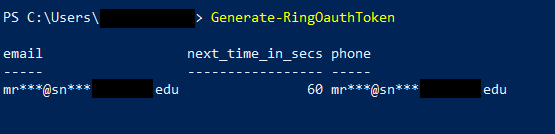
Once you receive the 6 digit 2FA code, run the function again with the “-code” switch to generate a token for later use like this.
$token = (Generate-RingOauthToken -code xxxxxx).access_tokenWith our token in hand we can query the devices in our account. This is handled through a different endpoint than before. Record the ID of the chime you’d like to make ring.
#get all chime devices
$chimes = (Invoke-RestMethod -Method get -Uri 'https://api.ring.com/clients_api/ring_devices' -Headers @{Authorization = "Bearer $token"}).chimes

#get all doorbell devices
$doorbells = (Invoke-RestMethod -Method get -Uri 'https://api.ring.com/clients_api/ring_devices' -Headers @{Authorization = "Bearer $token"}).doorbots

#quick access reference for the object IDs of all chimes in the account
$chimes.ID
#quick access reference for the object IDs of all doorbells in the account
$doorbells.ID
After you find the particular device ID for the chime you want to make ring, run the following command to make it so. Replace “{ChimeID}” with the ID you found from the preceding commands.
Invoke-WebRequest -Method post -Uri 'https://api.ring.com/clients_api/chimes/{ChimeID}/play_sound' -Headers @{Authorization = "Bearer $token"}There you have it. One broken script restored to its former glory.
I’ll place the entire token generation function below so it’s all together in one place. I left both authentication methods (manual typing and stored in plain text) in the script so comment out one and use the other if you’d like.
Function Generate-RingOauthToken{

param(
        [Parameter(Mandatory=$false)]
        [string]
        $Code
)

#define the Endpoint for granting access tokens
#this is also the endpoint for generating a 2FA code
$uri = "https://oauth.ring.com/oauth/token"


<#

This area was commented out in favor of putting the credentials in the script so you don't
have to type username and pw twice per token grant

#prompt the user for their username, if empty or only spaces throw an error and exit the function
$username = Read-Host -Prompt "Username"
if([string]::IsNullOrWhiteSpace($username)){
    Write-Error -Message "The Username was either blank or it could not be validated" -Category InvalidData
    exit
}

#prompt the user for their username, if empty or only spaces throw an error and exit the function
$Secpassword = Read-Host -Prompt "password" -AsSecureString
if([string]::IsNullOrWhiteSpace($Secpassword)){
    Write-Error -Message "The Username was either blank or it could not be validated" -Category InvalidData
    exit
}

#create a PSCredential object to hold the username and password
$credential = New-Object System.Management.Automation.PSCredential ($userName, $SecPassword)

#extract the plaintext password from the securestring password of the PSCredential object
$password = $credential.GetNetworkCredential().Password

#>

#plaintext username and password. Comment out these two lines and uncomment the block
#above to use manual username and password typing
$username = "YourUsernameHere"
$password = "YourPasswordHere"

#define the parameters used to authenticate
 $Authbody = @{
    client_id = "ring_official_android"
    grant_type = "password"
    scope = "client"
    username = $username
    password = $password
}

#if a 2FA code was supplied generate a hashtable for the header fields
#containing the code
If(!([string]::IsNullOrWhiteSpace($Code))){

    $authheaders = @{
    'Content-Type' = 'application/x-www-form-urlencoded';
    'charset' = 'UTF-8';
    'User-Agent' = 'Dalvik/2.1.0 (Linux; U; Android 9.0; SM-G850F Build/LRX22G)';
    'Accept-Encoding' = 'gzip, deflate'
    '2fa-support' = 'true'
    '2fa-code' = $Code

    }

}else{

#otherwise use the standard headers indicating the user needs a new 2FA code
#to be generated
$authheaders= @{

    'Content-Type' = 'application/x-www-form-urlencoded';
    'charset' = 'UTF-8';
    'User-Agent' = 'Dalvik/2.1.0 (Linux; U; Android 9.0; SM-G850F Build/LRX22G)';
    'Accept-Encoding' = 'gzip, deflate'

    }

}


try{

#make an authentication request for a token or 2FA Code
$Authrequest = Invoke-RestMethod -Uri $uri -Method Post -Body $Authbody -Headers $authheaders -ErrorAction Stop

}
catch{

    #return the parsed error message to the user
    $message = $error[0].ErrorDetails.Message | ConvertFrom-Json
    $exception = $error[0].Exception.Message

    return $message
    EXIT


}

#if successful, return the access token
return $Authrequest


}  Overkill Scripting